FAQs
Common questions and answers about Codex Editor
Here you can find the answers to the most common questions about Codex Editor. If something is not working, start with our Troubleshooting guide before reaching out on Discord.
How do I download Codex Editor?
Visit codexeditor.app and select your operating system:
- macOS — Choose Apple Silicon or Intel based on your Mac
- Windows — Download the x64 installer (you'll need to approve security warnings since the app is unsigned)
- Linux — Select x64, arm64, or armhf architecture
See detailed download instructions →
How do I create an account?
- Open Codex Editor and click "Create a new account"
- Enter a unique username, valid email address, and a strong 15-character password
- Complete registration and you'll be automatically logged in
- You'll remain logged in for up to one year
Important: Use a real email address — fake emails cannot be used for password resets.
See detailed account creation guide →
Can I change my username?
No, usernames cannot be changed after account creation.
Do I need technical experience?
No. Codex Editor is designed to be user-friendly for both novice and experienced translators. The interface is intuitive, and our step-by-step guides will help you get started quickly.
What is a source text and a target text?
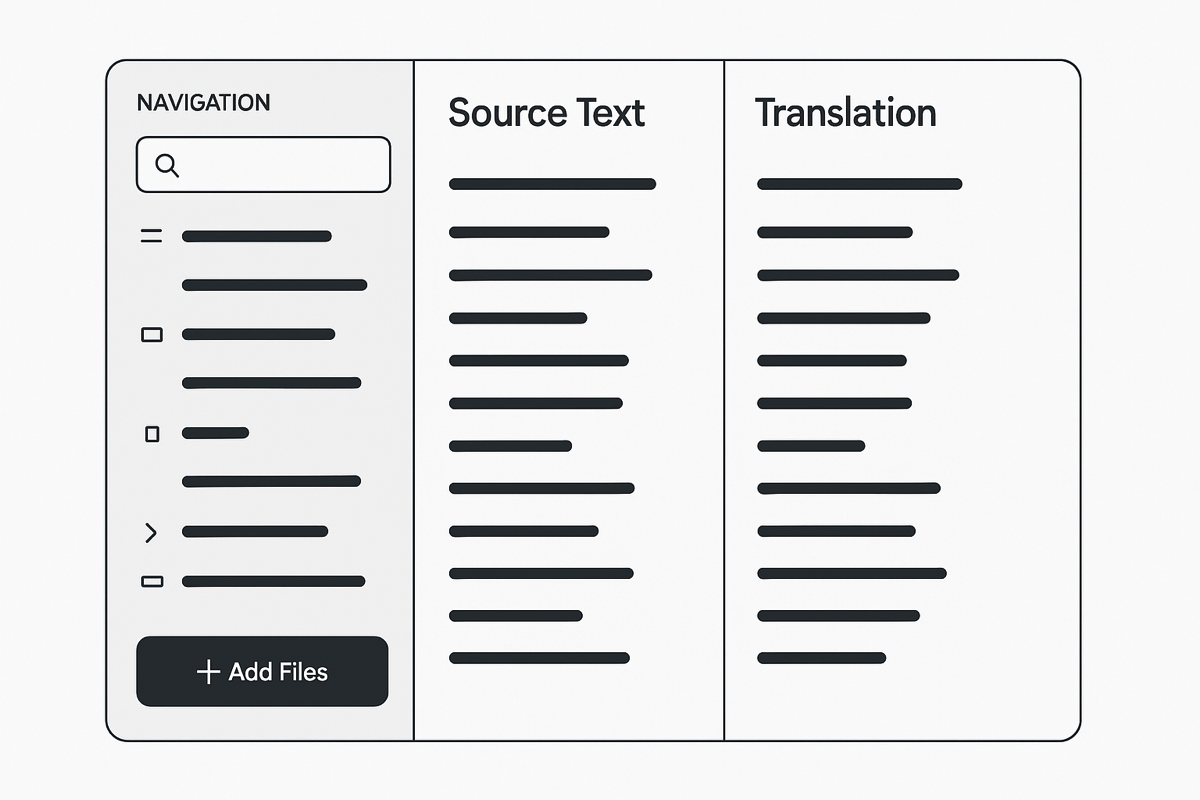
A source text is the original content you want to translate — a structured text file, subtitle file, document, etc. A target text is your translation of that content.
Where can I get help or ask questions?
Start with the Troubleshooting guide to find the right fix path for setup, project, import, sync, AI, media, and export issues. If you still need help after trying the relevant steps, join our Discord server: discord.gg/6kVJTEXYEp.
How do I create my first project?
- Click "Create New Project" from the project setup screen
- Enter your project name
- Your project will be created instantly
- Set your source and target languages
- Import your source texts
See detailed project creation guide →
I just created a project — what should I do next?
Start by importing your source files. Codex will automatically create blank target files that you can translate into or populate by importing existing translations.
How do I import my files?
Click "Add Files" to open the import wizard. Choose "Import Your Content" to add original texts, or "Add Your Translation" to bring in existing translations and align them with your source content.
What file formats can I import?
Codex supports a wide variety of formats including DOCX, SRT/VTT (subtitles), USFM, Paratext projects, Markdown, eBible Download, Open Bible Stories, InDesign (IDML), Biblica Study Notes, TMS files (TMX/XLIFF), CSV/TSV, audio files (MP3, WAV, M4A, AAC, OGG, WebM, FLAC), and more.
See the full file import guide →
What happens if I import a file with the same name?
Codex will show a warning and ask if you want to overwrite the existing file. If confirmed, the original file will be replaced.
Can I import more files later?
Yes. You can add source or target files at any time as your project grows.
What if I have a partially complete translation from another tool?
Import it using the "Add Your Translation" option. Codex will attempt to match your existing source content with the incoming translations based on file name and structure.
What if my source and target files don't align perfectly?
Codex matches content based on references, not just line numbers. Even imperfectly structured files can often be aligned effectively.
Can I bulk import?
Yes. You can drag and drop multiple files or use ZIP archives with a clear folder structure.
Can I undo an import?
Not automatically. If you need to reverse an import, manually delete the file from the project or re-import a corrected version.
What kinds of content can I translate with Codex?
Codex supports structured and semi-structured content including documents, video subtitles, podcast transcripts, literature, audio-linked text, and more. Check out our guides for video & audio translation and importing various file formats.
Can I work on multiple projects?
Yes. Each project is independent with its own settings, languages, and collaboration features.
How does the AI translation work?
Codex Editor uses advanced AI to provide translation suggestions based on:
- Your source and target languages
- Custom AI instructions you provide
- Previous translations and corrections you've made
- Context from surrounding segments or text
Can I customize the AI's behavior?
Yes! You can:
- Write custom AI instructions manually
- Use the AI to generate translation instructions automatically (click the sparkle button)
- Modify generated instructions to match your specific needs
- Train the AI by accepting or editing its suggestions
Learn how to customize AI instructions →
What is batch translation?
Batch translation uses AI to queue multiple cells at once for autocompletion, rather than translating cell by cell. You can select cell types (empty cells, not validated by users, etc.), choose how many to translate, and the AI will process them in batch. The AI learns from your edits and improves over time.
Learn how to use batch translation →
How accurate are the AI translations?
AI translations are suggestions designed to accelerate your work, not replace human judgment. Always review, edit, and validate AI-generated translations to ensure accuracy and cultural appropriateness.
What is back translation and how do I use it?
Back translation is a quality assurance tool that translates your work back into the source language to verify accuracy:
- Click on a translated verse
- Go to the "Back Translation" tab
- Click the refresh button to generate the back translation
- Review and edit the back translation as needed
- The AI learns from your corrections to improve future back translations
Learn more about translation tools →
How do I validate translations?
- Review AI-generated translations carefully
- Use back translation to verify accuracy
- Have team members review and approve translations
- Use the validation circle on each cell to mark it as approved
- Configure required validation counts in project settings
The AI isn't providing good translations. How can I improve them?
- Review and customize your AI instructions
- Provide more context in your source texts
- Edit AI suggestions to train the system
- Ensure your source and target languages are set correctly
The AI learns from your edits, so the more you edit, the better it gets.
How do I share my project with others?
- Go to your sidebar menu
- Click "Publish Project" to make it available for sharing
- Create or join groups in your organization on git.genesisrnd.com
- Add team members and assign appropriate roles (Developer, Maintainer, or Owner)
See detailed project sharing guide →
Can multiple people work on the same project?
Yes. Multiple users can work on the same project with:
- Automatic synchronization on configurable intervals (5, 15, 30, or 60 minutes)
- Git-based version control to track changes
- Robust edit history for each verse
- Manual sync option for immediate updates
What are the different user roles?
| Role | Access |
|---|---|
| Owner | Full project control, can manage all settings and members |
| Maintainer | Can manage project content and some settings |
| Developer | Can contribute translations and edits |
| Reporter | Read-only access to project content |
How do I create subgroups for specific languages?
You can create subgroups within your main organization on git.genesisrnd.com to organize projects by language or region, manage access, and streamline collaboration for specific translation teams.
How do I update the Codex Editor extension?
The easiest way is through the main menu:
- Open the Main Menu from the sidebar
- Scroll to the Tools section and click Updates
- Follow the prompts to install available updates
- Reload the window when prompted
You can also update manually through the Extensions panel (Ctrl+Shift+X / Cmd+Shift+X).
See detailed extension update guide →
How long do I stay logged in?
You'll remain logged in for up to one year after initial login, making it convenient for regular use.
What export formats are available?
Codex Editor supports multiple export formats:
- Standard formats — Plain text, HTML, USFM, and XLIFF
- Round-trip Export — Auto-detects original format (DOCX, USFM, OBS, TMS, CSV/TSV, IDML, Biblica)
- Subtitles — VTT/SRT with original timing preserved
- Data export — CSV/TSV with source, target, and metadata columns
- Backtranslations — CSV with source, translation, and backtranslation
- Audio — Per-cell audio attachments
Can I work offline?
Yes. Projects are stored locally on your device, allowing for offline work. Changes sync when you reconnect to the internet.
I forgot my password. How do I reset it?
Use the password reset option on the login screen. This is why it's important to use a real email address during registration.
My project won't initialize. What should I do?
- Check your internet connection
- Ensure you have sufficient storage space
- Try restarting the application
- Clear any error messages and try again
If issues persist, use the Troubleshooting guide to gather the right details, then review the initial setup guide, How to Update Codex, or the release notes.
How many Bible versions are available?
Codex Editor provides access to hundreds of translations in dozens of languages, including original language texts (Hebrew, Greek, Aramaic), historical and modern translations, public domain and freely available texts, and scholarly editions. You can also import your own texts.
Where can I find more detailed documentation?
Browse our comprehensive documentation sections:
- Getting Started — Complete setup guide
- Translation Tools — AI features and workflows
- Project Management — Collaboration tools
- Search & Replace — Find passages across your project
- Comments — Team discussion and notes
How do I contact support?
- Start with the Troubleshooting guide
- Gather your Codex version, operating system, reproduction steps, expected vs actual behavior, and any console errors
- Use Reporting Bugs if you need help collecting the right evidence
- Join our Discord community for tips and assistance
Still have questions? Start with the Troubleshooting guide, then reach out on our Discord community with your version, OS, steps to reproduce, and any error details you found.